This page goes through how to create the 3D Game using the Unreal Engine
The advantage of using this engine is that it lets you make the game for any system. I will install it using Windows but you can also run it on your Mac if you wish to. It has templates to get you started.
You then run the Epic Games Launcher and need to create an account.
The Unreal Engine can be programmed for your game using either Blueprints or C++. Blueprints are a type of “visual coding” – you drag and drop elements and connect elements with each other. Luckily there are a lot of video tutorials online on how to do a specific thing in either C++ or Blueprints as well as how to use Unreal.
Some documentation on Unreal is below:
- The Unreal Engine documentation
- Setting up Visual Studio for Unreal
- Understanding the Basics of Unreal
Setting Up
The initial setup requires a bit of effort.
I first installed Microsoft Visual Studio Community – I am using 2022 but I also installed 2026 to see if I can get it working as well – the Unreal project seems to be targeted for version 2022.
I then installed the Unreal Engine using these steps. I installed the Unreal Engine version 5.7
Once Unreal was installed, I created a new project using the First Person template:

I decided to do it as a C++ project, but you still use blueprints as well. You have to setup Visual Studio for Unreal as well.
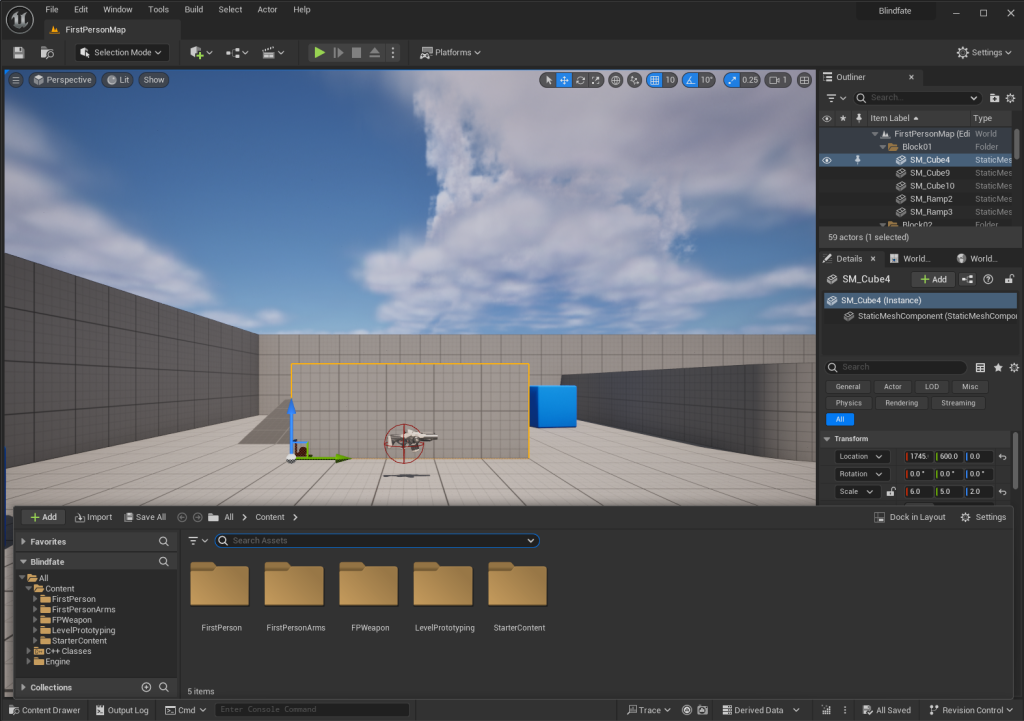
Once the project is created, then you will see the following screens below.
This screen shows you the initial startup. If you click on Content Browser on the bottom left hand corner, you will see folders and options to import assets.
Because I chose a C++ project, Unreal it brings up the Visual Studio screen. You can also do this in Unreal on the menu by clicking on Tools -> Open Visual Studio
This screen will show on startup below. I clicked on the Visual Studio Integration Tool Status button labelled “Install to Project”.

If you get an error about the Visual Studio Integration Tool plugin that needs to be installed, then follow Setting up Visual Studio for Unreal and also Integration Tool setup and also Quickstart Visual Studio Tools
Also you might need to install more modules to Visual Studio – for example, you might get the message below (in the top right corner):

Folder Structure
In the Content Drawer, I created a folder called Blindfate and then created all the folders for the levels underneath as follows:

The Assets folder will contain all the assets required for the level and the Map folder contains the level or map.
Underneath the Blindfate folder, I created an Assets folder to put in assets that are the same for the whole game – for example, the characters.
I also created a Menu folder and one for OpenWorld.
Levels
Unreal uses levels to create the gameplay – see below for an example (called Lvl_FirstPerson):

If you double click on it, you can play the level.
Have a look at other folders in the Content Drawer. You can play a Variant_Shooter level and a Variant_Horror level. Also there is a FirstPerson level to play as well.
There are ways you can move between levels using code and blueprints. Also the main menu will be a level. You can also create an Open World level so that the player can be in an open world area.